Saturday, May 10, 2014

System Development Life Cycle (SDLC)

 System Development Life Cycle (SDLC)

The System Development Life Cycle (SDLC) is a conceptual model for software development that consists of multiple phases: Software Concept; Analysis; Design; Coding and Debugging; System Integration and Testing; Implementation; and Maintenance and Support. Each phase can be thought of as a building block for the next phase. There are different SDLC models that may be followed, such as the classic “Waterfall Model,” “Spiral,” and “Evolutionary Prototyping,” as well as many modified Waterfall models.1 The key is to adapt a model that lends structure to your project. This paper features a Waterfall Model for the SDLC.

In the Waterfall model, a software development project progresses through a sequence of steps from initial software concept through maintenance and support. The model is sometimes referred to as document-driven because documents are produced in each phase and used in subsequent phases. The documents serve as a progress indicator throughout the life-cycle until a working software product is available. Planning is often difficult in software development projects due to intangible items. However, when using the Waterfall model the requirements are usually well-defined so planning can be done up front. The Waterfall model works well with complex projects where the requirements are well understood because the complexity can be dealt with in a structured way.

A fairly simple software project can become complicated very quickly, so keeping the project organized and documented is essential. Many projects fail or miss deadlines and come in severely over budget for the simple reason that thorough analysis and design are not done up front and risk is not managed. Careful consideration of each phase of the SDLC, while participating in a software development project, will greatly increase the chances of a successful project. Planning on several levels is essential for the successful completion of any software project. The SDLC can be beneficial to a software project regardless of the size or complexity of the project if a conceptual model is followed. The following seven SDLC phases illustrate the selected Waterfall Model.

 Phase 1: Software Concept

The first phase in the SDLC identifies and defines the system to be developed. In this phase the researcher and software engineer brainstorm about the system and what it will do. Document requirements (using the template in Appendix A) as much as possible, so that an adequate system can be built that will be flexible for handling future enhancements. Communication among the research team including the software engineer, researcher, project manager (if other than the software engineer or researcher), stakeholders, and funding

1 The “Spiral” model divides a software development project into several smaller projects that address the major risks first. “Evolutionary Prototyping” is a model in which a prototype is developed and eventually refined into the final software product. Hybrid SDLC models may be successfully utilized as well. S. McConnell, Rapid Development Taming Wild Software Schedules (Redmond, Washington: Microsoft Press, 1996), pp. 136-147.
Sponsors is critical in this phase to ensure that proper requirements are obtained and documented.

Phase 2: Analysis

The team analyzes the requirements of the system to gain a clear understanding of what is required; in addition the software engineer must understand the technical aspects of the requirements. Figure out where and how the system will be used, who the users will be, and document everything for use in the Design phase. The team members must document even the seemingly trivial details gleaned during analysis, because these are the things that turn out to be very important for the proper execution of the software product.

 Phase 3: Design

In the design phase, the analysis that was done in the previous phase is reviewed and the software engineer devises a design solution. The design must support the requirements and be as explicit as possible. Software design tends to start out relatively simple, but as all the requirements are considered, systems tend to become complex and unwieldy. It is good practice to prioritize the features based on importance and effort while putting together the design. Use Appendix B, a project schedule template, for documenting the tasks to implement the design. Use Appendix C, a priority list template, for establishing priority of project features. This way the coding schedule can incorporate the tasks associated with high priority features in a timely manner because there is the chance that items with lower priority may not make it into the software or may be included in a future release.

A solid architecture and design will avoid significant rework later on. Mainstream technology usually follows industry standards and is supported well; therefore problems can quickly be resolved when they arise. Careful consideration must be given before utilizing cutting edge technology. Since the technology is innovative, bugs and other technical issues will be present, and will need to be worked out as they are encountered. When problems arise, quick solutions are difficult to craft because the knowledge base and support is very limited. Even minor problems in these technologies can cause a cascade of modifications that need to be implemented which can adversely affect the whole project schedule and ultimately jeopardize the project.

Technical complexity increases the risk for the software project and should be avoided if possible. Issues resulting from unnecessary technical complexity can negatively impact the schedule, because a great deal of time could be spent trying to work around issues.

Phase 4: Coding and Debugging

Coding and debugging is the phase where the design is implemented by the software engineer. The design described in the previous phase serves as the blueprint for the system to be built, providing most of the information the software engineer will need. The software engineer will interpret the design and develop the code. Even when the software engineer is also the designer, it is important to have a detailed design, because it is easy to overlook minor details that can result in a major error.

Debugging is the process of locating and removing errors from the code. Most current programming languages allow compiling a “debug” version of the code. The “debug” version allows stepping through code, setting breakpoints, viewing current variable values, and offers debug information about the code that helps the software engineer locate problems. After the code is stable, the production version of the code is compiled and used for system testing.

Phase 5: System Integration and Testing

System integration occurs when distinct software modules are linked together and are capable of functioning as a unit. When there are multiple software engineers on a project, all the developers are expected to code to an accepted standard; if they do, and the design is good, there will likely be very few problems, if any, at this point. Unfortunately, this is not always the case. A common cause of system breakdown is a software engineer deciding that something needs to be done differently without informing the other software engineers. Because modules need to work together, a common protocol must be followed.

System testing helps to locate problems, and potential problems, with a software system. It is essential to have people other than the software engineers testing the software. It is a good idea to develop test plans to ensure that the testers adequately test critical functionality as well as less important items. For larger software projects, reporting bugs and prioritizing bug fixes will be a coordinated effort between the project manager, software engineer, and testers. Use Appendix C, a priority list template, for establishing priority of bug fixes. The software engineer and the project manager should come to an agreement on what to fix and what to let go, based on time, effort, and risk. This phase of the project usually takes on a life of its own, especially when the development team is large. In smaller software projects, testing tends to be straightforward, but in large projects, it is very time consuming to test every scenario, so adequate time must be allocated for testing in the schedule.

 Phase 6: Implementation

Implementation is the process of installing the software on the customer’s (e.g., other agency client, NIST Server) system and applying licensing agreements and access rights. This process can be somewhat difficult since it is hard to know exactly what kind of system hardware and supporting software may be encountered during the installation. As a result, problems occasionally arise due to compatibility issues. Prior planning can help to minimize some of these problems. Licensing and access rights that were established during the design phase will be applied in the implementation phase. Software may be designed so that certain features are limited or turned off based on the particular license that is applied. Appropriate licensing ensures the proper level of functionality for the software product. Proprietary libraries, dynamic link libraries (DLLs) and other modules to be used in conjunction with the software product being implemented are examples of entities that may require additional licensing.

After implementation, do a presentation for the sponsor and invite the sponsor to do some acceptance testing. Keep the sponsor in the loop during development so there will not be any big surprises at the final demonstration. After acceptance testing, and any final revisions following that meeting, present a formal letter to the sponsor transmitting the final product and indicating closure of the project. This meeting is a good opportunity to confirm the sponsor’s interest in funding maintenance and support activities (see 2.7) as well as to identify the sponsor’s interest in funding additional features suggested during testing.

Phase 7: Maintenance and Support

Maintenance includes items such as patches and data updates, while support includes bug fixes, help for users of the software, and collecting requests for new functionality. Discuss maintenance and support with the customer up front. Different types of maintenance and support may be provided based on what makes sense for the particular software product that is being created as well as on the needs of the customer. Determining the right mix of maintenance and support is challenging and fraught with uncertainty, but aligning customer expectations before maintenance and support issues arise will help maintain customer satisfaction and may potentially lead to additional future funding.

It is important to maintain a copy of the source code once the development effort has ended. It is also recommended to maintain version specific source code. There are a few different source control software packages that efficiently do this. Maintaining version specific source code enables an old version to be recompiled should unanticipated issues arise after software release. Depending on the agreement with the sponsor, updates for the software product may be issued occasionally. Data updates may be required, if requested by the sponsor, for software that needs to use a current data set. This should be contractually agreed to and not implied. It is important to maintain a copy of the source code, data, installation program and executable application in a secure manner after the project is completed. Maintain security by having the project manager and the software engineer keep archival copies.

Thursday, April 10, 2014

PARTS OF COMPUTER


Parts of a computer


If you use a desktop computer, you might already know that there isn't any single part called the "computer." A computer is really a system of many parts working together. The physical parts, which you can see and touch, are collectively calledhardware. (Software, on the other hand, refers to the instructions, or programs, that tell the hardware what to do.)
The following illustration shows the most common hardware in a desktop computer system. Your system might look a little different, but it probably has most of these parts. A laptop computer has similar parts but combines them into a single, notebook-sized package.
Picture of a desktop computer system
Desktop computer system
Let's take a look at each of these parts.

System unit

The system unit is the core of a computer system. Usually it's a rectangular box placed on or underneath your desk. Inside this box are many electronic components that process information. The most important of these components is the central processing unit (CPU), or microprocessor, which acts as the "brain" of your computer. Another component is random access memory (RAM), which temporarily stores information that the CPU uses while the computer is on. The information stored in RAM is erased when the computer is turned off.
Almost every other part of your computer connects to the system unit using cables. The cables plug into specific ports(openings), typically on the back of the system unit. Hardware that is not part of the system unit is sometimes called aperipheral device or device.
Picture of a system unit
System unit

Storage

Your computer has one or more disk drives—devices that store information on a metal or plastic disk. The disk preserves the information even when your computer is turned off.

Hard disk drive

Your computer's hard disk drive stores information on a hard disk—a rigid platter or stack of platters with a magnetic surface. Because hard disks can hold massive amounts of information, they usually serve as your computer's primary means of storage, holding almost all of your programs and files. The hard disk drive is normally located inside the system unit.
Picture of a hard disk drive
Hard disk drive

CD and DVD drives

Nearly all computers today come equipped with a CD or DVD drive, usually located on the front of the system unit. CD drives use lasers to read (retrieve) data from a CD; many CD drives can also write (record) data onto CDs. If you have a recordable disk drive, you can store copies of your files on blank CDs. You can also use a CD drive to play music CDs on your computer.
Picture of a CD
CD
DVD drives can do everything that CD drives can, plus read DVDs. If you have a DVD drive, you can watch movies on your computer. Many DVD drives can record data onto blank DVDs.

Tip

  • If you have a recordable CD or DVD drive, periodically back up (copy) your important files to CDs or DVDs. That way, if your hard disk ever fails, you won't lose your data.

Floppy disk drive

Floppy disk drives store information on floppy disks, also called floppies or diskettes. Compared to CDs and DVDs, floppy disks can store only a small amount of data. They also retrieve information more slowly and are more prone to damage. For these reasons, floppy disk drives are less popular than they used to be, although some computers still include them.
Picture of a floppy disk
Floppy disk
Why are these disks called "floppy" disks? The outside is made of hard plastic, but that's just the sleeve. The disk inside is made of a thin, flexible vinyl material.

Mouse

A mouse is a small device used to point to and select items on your computer screen. Although mice come in many shapes, the typical mouse does look a bit like an actual mouse. It's small, oblong, and connected to the system unit by a long wire that resembles a tail. Some newer mice are wireless.
Picture of a computer mouse
Mouse
A mouse usually has two buttons: A primary button (usually the left button) and a secondary button. Many mice also have a wheel between the two buttons, which allows you to scroll smoothly through screens of information.
Picture of mouse pointers
Mouse pointers
When you move the mouse with your hand, a pointer on your screen moves in the same direction. (The pointer's appearance might change depending on where it's positioned on your screen.) When you want to select an item, you point to the item and then click (press and release) the primary button. Pointing and clicking with your mouse is the main way to interact with your computer. For more information, see Using your mouse.

Keyboard

A keyboard is used mainly for typing text into your computer. Like the keyboard on a typewriter, it has keys for letters and numbers, but it also has special keys:
  • The function keys, found on the top row, perform different functions depending on where they are used.
  • The numeric keypad, located on the right side of most keyboards, allows you to enter numbers quickly.
  • The navigation keys, such as the arrow keys, allow you to move your position within a document or webpage.
Picture of a keyboard
Keyboard
You can also use your keyboard to perform many of the same tasks you can perform with a mouse. For more information, seeUsing your keyboard.

Monitor

monitor displays information in visual form, using text and graphics. The portion of the monitor that displays the information is called the screen. Like a television screen, a computer screen can show still or moving pictures.
There are two basic types of monitors: CRT (cathode ray tube) monitors and the newer LCD (liquid crystal display) monitors. Both types produce sharp images, but LCD monitors have the advantage of being much thinner and lighter.
Picture of an LCD monitor and a CRT monitor
LCD monitor (left); CRT monitor (right)

Printer

A printer transfers data from a computer onto paper. You don't need a printer to use your computer, but having one allows you to print e‑mail, cards, invitations, announcements, and other material. Many people also like being able to print their own photos at home.
The two main types of printers are inkjet printers and laser printers. Inkjet printers are the most popular printers for the home. They can print in black and white or in full color and can produce high-quality photographs when used with special paper. Laser printers are faster and generally better able to handle heavy use.
Picture of an inkjet printer and a laser printer
Inkjet printer (left); laser printer (right)

Speakers

Speakers are used to play sound. They can be built into the system unit or connected with cables. Speakers allow you to listen to music and hear sound effects from your computer.
Picture of computer speakers
Computer speakers

Modem

To connect your computer to the Internet, you need a modem. A modem is a device that sends and receives computer information over a telephone line or high-speed cable. Modems are sometimes built into the system unit, but higher-speed modems are usually separate components.
Picture of a cable modem
Cable modem


Random-access memory (RAM) -- Even the fastest processor needs a buffer to store information while it's being processed. The RAM is to the CPU as a countertop is to a cook: It serves as the place where the ingredients and tools you're working with wait until you need to pick up and use them. Both a fast CPU and an ample amount of RAM are necessary for a speedy PC. Each PC has a maximum amount of RAM it can handle, and slots on the motherboard indicate the type of RAM the PC requires.
Drives -- A drive is a device intended to store data when it's not in use. A hard drive or solid state drive stores a PC's operating system and software, which we'll look at more closely later. This category also includes optical drives such as those used for reading and writing CD, DVD and Blu-ray media. A drive connects to the motherboard based on the type of drive controller technology it uses, including the older IDE standard and the newer SATA standard.
Cooling devices -- The more your computer processes, the more heat it generates. The CPU and other components can handle a certain amount of heat. However, if a PC isn't cooled properly, it can overheat, causing costly damage to its components and circuitry. Fans are the most common device used to cool a PC. In addition, the CPU is covered by a metallic block called a heat sink, which draws heat away from the CPU. Some serious computer users, such as gamers, sometimes have more expensive heat management solutions, like a water-cooled system, designed to deal with more intense cooling demands.
Cables -- All the components we've mentioned so far are connected by some combination of cables. These cables are designed to carry data, power or both. PCs should be constructed so that the cables fold neatly within the case and do not block air flow throughout it.
A PC is typically much more than these core components. Next, we'll look at the ports and peripherals that let you interact with the computer and how you can add even more components using expansion slots.

Wednesday, April 9, 2014

Time Sharing System

A time sharing system allows many users to share the computer resources simultaneously. In other words, time sharing refers to the allocation of computer resources in time slots to several programs simultaneously. For example a mainframe computer that has many users logged on to it. Each user uses the resources of the mainframe -i.e. memory, CPU etc. The users feel that they are exclusive user of the CPU, even though this is not possible with one CPU i.e. shared among different users.
The time sharing systems were developed to provide an interactive use of the computer system. A time shared system uses CPU scheduling and multiprogramming to provide each user with a small portion of a time-shared computer. It allows many users to share the computer resources simultaneously. As the system switches rapidly from one user to the other, a short time slot is given to each user for their executions.
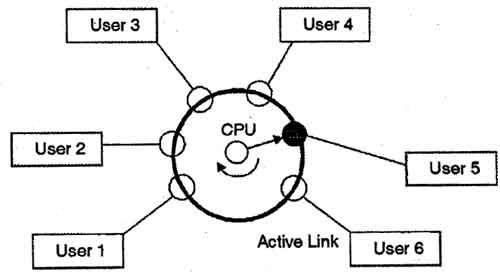
The time sharing system provides the direct access to a large number of users where CPU time is divided among all the users on scheduled basis. The OS allocates a set of time to each user. When this time is expired, it passes control to the next user on the system. The time allowed is extremely small and the users are given the impression that they each have their own CPU and they are the sole owner of the CPU. This short period of time during that a user gets attention of the CPU; is known as a time slice or a quantum. The concept of time sharing system is shown in figure.
                               
In above figure the user 5 is active but user 1, user 2, user 3, and user 4 are in waiting state whereas user 6 is in ready status.
As soon as the time slice of user 5 is completed, the control moves on to the next ready user i.e. user 6. In this state user 2, user 3, user 4, and user 5 are in waiting state and user 1 is in ready state. The process continues in the same way and so on.
The time-shared systems are more complex than the multi-programming systems. In time-shared systems multiple processes are managed simultaneously which requires an adequate management of main memory so that the processes can be swapped in or swapped out within a short time.
Note: The term 'Time Sharing' is no longer commonly used, it has been replaced by 'Multitasking System'
  • While multiprogrammed systems used resources more efficiently i.e. minimized CPU idle time, a user could not interact with a program.
  • Time-Sharing Systems Interactive Computing. Time sharing (or multitasking) is a logical extension of multiprogramming. In time-sharing systems, the CPU executes multiple jobs by switching among them, but the switches occur so frequently that the users can interact with each program while it is running.
  • The user gives instructions to the OS or to a program directly, using a input device such as a keyboard or a mouse, and waits for immediate results on an output device. Accordingly, the response time should be short-typically less than one second.
  • As the system switches rapidly from one user to the next, each user is given the impression that the entire computer system is dedicated to his use, even though it is being shared among many users.
  • The CPU switches to the next job that can be run whenever the current job enters a wait state or after the current job has used a standard unit of time.
  • When viewed over a relatively long time frame, we obtain the appearance that the CPU is simultaneously running multiple programs.
  • A time-shared OS uses CPU scheduling and multiprogramming to provide each user with a small portion of a time-shared computer.
  • Time-sharing and multiprogramming require several jobs to be kept simultaneously in memory. Since in general main memory is too small to accommodate all jobs, the jobs are kept initially on the disk in the job pool.
  • Processes are swapped in and out of main memory to the disk. In effect, we are now ``memory sharing'' between competing users (programs). This idea leads to a mechanism called virtual memory.
  • Virtual memory is a technique that allows the execution of a process that is not completely in memory. The main advantage of the virtual-memory scheme is that it enables users to run programs that are larger than actual physical memory.
  • If several jobs are ready to be brought into memory, and if there is not enough room for all of them, then the system must choose among them. Making this decision is job scheduling.
  • When the OS selects a job from the job pool, it loads that job into memory for execution. Having several programs in memory at the same time requires some form of memory management.
  • In addition, if several jobs are ready to run at the same time, the system must choose among them. Making this decision is CPU scheduling.
  • Further, it abstracts main memory into a large, uniform array of storage, separating logical memory as viewed by the user from physical memory.
  • This arrangement frees programmers from concern over memory-storage limitations.
  • Time-sharing systems must also provide a file system. The file system resides on a collection of disks; hence, disk management must be provided.
  • Also, time-sharing systems provide a mechanism for protecting resources from inappropriate use.
  • To ensure orderly execution, the system must provide mechanisms for job synchronization and communication, and it may ensure that jobs do not get stuck in a deadlock, forever waiting for one another.
  • New OS Functionalities: More complex job scheduling, memory management, concurrency control and synchronization.
  • The sensible sharing of resources such as CPU time and memory must be handled by the OS. For this control program to always be in control, we require that it never be blocked from running. The OS, which might in fact be organized like a small number of cooperating programs, will lock itself into memory and then control CPU allocation priority in order that it never be blocked from running.

Time-sharing operating systems

Time sharing is a technique which enables many people, located at various terminals, to use a particular computer system at the same time. Time-sharing or multitasking is a logical extension of multiprogramming. Processor's time which is shared among multiple users simultaneously is termed as time-sharing. The main difference between Multiprogrammed Batch Systems and Time-Sharing Systems is that in case of Multiprogrammed batch systems, objective is to maximize processor use, whereas in Time-Sharing Systems objective is to minimize response time.
Multiple jobs are executed by the CPU by switching between them, but the switches occur so frequently. Thus, the user can receives an immediate response. For example, in a transaction processing, processor execute each user program in a short burst or quantum of computation. That is if n users are present, each user can get time quantum. When the user submits the command, the response time is in few seconds at most.
Operating system uses CPU scheduling and multi-programming to provide each user with a small portion of a time. Computer systems that were designed primarily as batch systems have been modified to time-sharing systems.
Advantages of Time sharing operating systems are following
·         Provide advantage of quick response.
·         Avoids duplication of software.
·         Reduces CPU idle time.
Disadvantages of Timesharing operating systems are following.
·         Problem of reliability.
·         Question of security and integrity of user programs and data.
·         Problem of data communication.


Monday, April 7, 2014

Advantage of Digital Over Analog Signal Processing

1.  The main advantage of digital signals over analog signals is that the precise signal level of the digital signal is not vital. This means that digital signals are fairly immune to the imperfections of real electronic systems which tend to spoil analog signals. As a result, digital CD's are much more robust than analog LP's.
2. Codes are often used in the transmission of information. These codes can be used either as a means of keeping the information secret or as a means of breaking the information into pieces that are manageable by the technology used to transmit the code, e.g. The letters and numbers to be sent by a Morse code are coded into dots and dashes.
3. Digital signals can convey information with greater noise immunity, because each information component (byte etc) is determined by the presence or absence of a data bit (0 or one). Analog signals vary continuously and their value is affected by all levels of noise.
4. Digital signals can be processed by digital circuit components, which are cheap and easily produced in many components on a single chip. Again, noise propagation through the demodulation system is minimized with digital techniques.
5. Digital signals do not get corrupted by noise etc. You are sending a series of numbers that represent the signal of interest (i.e. audio, video etc.)
6.  Digital signals typically use less bandwidth. This is just another way to say you can cram more information (audio, video) into the same space.
7. Digital can be encrypted so that only the intended receiver can decode it (like pay per view video, secure telephone etc.)
8. Enables transmission of signals over a long distance.
9. Transmission is at a higher rate and with a wider broadband width.
10. It is more secure.
11. It is also easier to translate human audio and video signals and other messages into machine language.
12. There is minimal electromagnetic interference in digital technology.
13. It enables multi-directional transmission simultaneously.

Saturday, April 5, 2014

MULTIPLAXING

What is multiplexing?
Frequency-Division Multiplexing
Time-Division Multiplexing (Synchronous)
Statistical Time-Division Multiplexing, etc.


Different type of Multiplexers
Frequency division multiplexing (FDM)
·       Time division multiplexing (TDM)
Frequency Division Multiplexing
(FDM)
           Frequency spectrum is divided among multiple logical channels.
     • Each user can have access to its own assigned frequencies or logical channels at all the time the individual user is active.
    • Sends the signal in several distinct frequency ranges.
    • Used in cable TV.
    • Carry multiple video channel on a single cable
     Each signal is modulated on the different carrier frequency and the carrier frequencies are separated by guard‐bands.


FDM System


FDM of Three Voiceband Signals
 Disadvantages of FDM
    • The problem with the FDM is that it cannot utilize the full
capacity of the system.
      • We need to ensure that the adjacent band do not overlap         each other otherwise signal mayefect other Signal.
       
Time Division Multiplexing           
                 (T DM)
    • In time division multiplexing the time is divided into multiple smaller units called slots and each user is given a slot to transmit it signal.
    • Each user have the entire bandwidth of the channel for short duration of time.
    • T‐1 and ISDN telephone lines are common examples of time division multiplexing.
     Used for digital signals or analog signals carrying digital data.
    • Data rate of the transmission medium exceeds the required data rate of all the signals.
    • Clock synchronization is one of the major issue in
     TDM systems as a small mismatch in the timing may ruin the utility of overall system.

         An important feature of sampling process is a conservation of time.
     • In principle, the communication link is used only at the sampling time instances.
     • Hence, it may be feasible to put other message’s samples between adjacent samples of this message
on a time‐shared basis.
     • This forms the time‐division multiplex (TDM) system.